
Find your next radio adventure
Getting Started
Curious about radio, newly licensed, or coming back after a break? You can start by listening, find someone nearby to learn with, or choose a small project. Each resource below explains what you can try before you follow the link.
Words with a dotted underline have definitions you can hover over, focus with your keyboard, or tap. You can also browse the radio terms glossary.
An operating reference worth bookmarking
Find your place on the bands
Explore US license privileges and common operating frequencies, including FT8, FT4 and the new JTTY. Try 20, 10 or 2 meters below, then open the full reference for all 18 bands from 2200 meters to 23 centimeters.
FCC privileges and customary frequencies are separate layers. Click a segment for details; keep your full emitted signal inside your privileges. Standard US Region 2 allocations are shown; geographic and special rules apply.
Open the complete US Band Plan
Download color overview · Download handbook
CWCW + RTTY/dataCW + phone/image*Multiple emissions*Special rules* *Click for exact permissions. Gray gaps: no privileges.
20 m14.0000 MHz – 14.3500 MHzHF
Each row spans this band only; widths are proportional to frequency. N = Novice · T = Technician · G = General · A = Advanced · E = Extra.
See its frequency limits, license class, emissions and power limit. Exact privileges are also listed below.
- All occupied emissions must remain inside the segment authorized to your control operator.
Exact FCC privilege ranges and restrictions
| License | Frequency limits | Permitted emissions | Power and conditions |
|---|---|---|---|
| Extra | 14.0000 MHz – 14.1500 MHz | CW, RTTY, Data | 1500 W PEP maximum; use the minimum needed. |
| Extra | 14.1500 MHz – 14.3500 MHz | CW, Phone, Image | 1500 W PEP maximum; use the minimum needed. |
| Advanced | 14.0250 MHz – 14.1500 MHz | CW, RTTY, Data | 1500 W PEP maximum; use the minimum needed. |
| Advanced | 14.1750 MHz – 14.3500 MHz | CW, Phone, Image | 1500 W PEP maximum; use the minimum needed. |
| General | 14.0250 MHz – 14.1500 MHz | CW, RTTY, Data | 1500 W PEP maximum; use the minimum needed. |
| General | 14.2250 MHz – 14.3500 MHz | CW, Phone, Image | 1500 W PEP maximum; use the minimum needed. |
Operating references Customary / voluntary
USB dial frequencies are suppressed-carrier settings, not transmitted RF centers. Add the audio offset to find the RF signal. Keep the entire signal inside your privileges; listen before transmitting.
| Mode / activity | Frequency | License access | Meaning / source |
|---|---|---|---|
| FT8 | 14.0740 MHz | General, Extra, Advanced | USB dial. Customary software default; listen before transmitting. Source |
| JT65 | 14.0760 MHz | General, Extra, Advanced | USB dial. Customary software default; listen before transmitting. Source |
| JT9 | 14.0780 MHz | General, Extra, Advanced | USB dial. Customary software default; listen before transmitting. Source |
| FT4 | 14.0800 MHz | General, Extra, Advanced | USB dial. Customary software default; listen before transmitting. Source |
| JTTYProvisional | 14.0900 MHz | General, Extra, Advanced | USB dial. Provisional WSJT-X development default; confirm current software and activity. Source |
| FST4W | 14.0956 MHz | General, Extra, Advanced | USB dial. Customary software default; listen before transmitting. Source |
| WSPR | 14.0956 MHz | General, Extra, Advanced | USB dial. Customary software default; listen before transmitting. Source |
| Beacon | 14.1000 MHz | General, Extra, Advanced | CW carrier. International Beacon Project; avoid transmitting on the beacon frequency. Source |
| SSTV | 14.2300 MHz | General, Extra, Advanced | Carrier / calling. Customary operating reference; listen first and follow local coordination. Source |
No operating references match these filters on this band.
Link to this band · Download 20 m vector chart · FCC privileges · Emissions · Power
General · 14.0250 MHz – 14.1500 MHz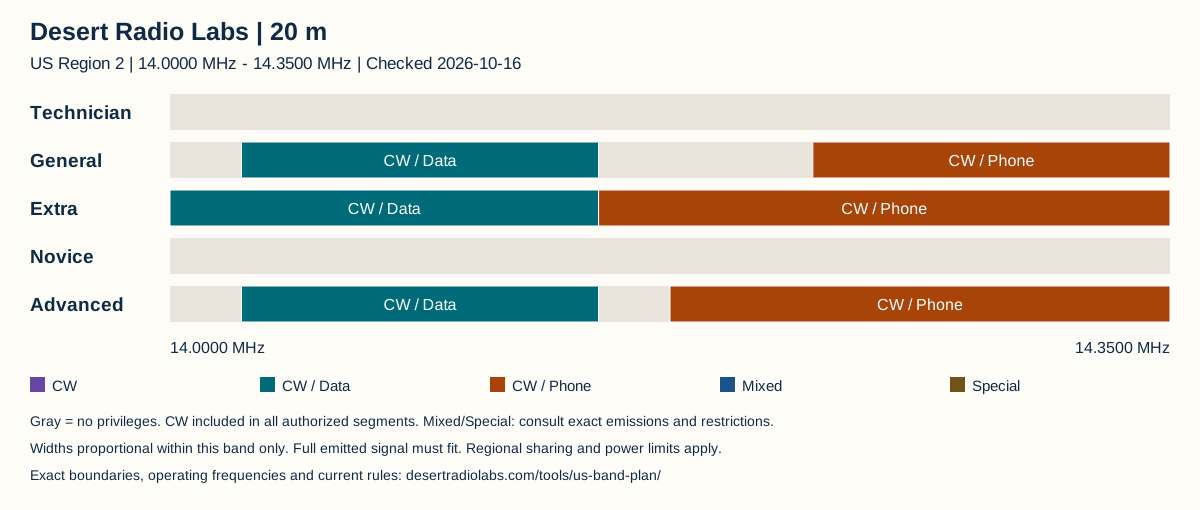
Allowed: CW, RTTY, Data.
Power: 1500 W PEP maximum; use the minimum needed.
Limits apply to the complete emitted signal. Special band and geographic restrictions below also apply.
General · 14.2250 MHz – 14.3500 MHzAllowed: CW, Phone, Image.
Power: 1500 W PEP maximum; use the minimum needed.
Limits apply to the complete emitted signal. Special band and geographic restrictions below also apply.
Extra · 14.0000 MHz – 14.1500 MHzAllowed: CW, RTTY, Data.
Power: 1500 W PEP maximum; use the minimum needed.
Limits apply to the complete emitted signal. Special band and geographic restrictions below also apply.
Extra · 14.1500 MHz – 14.3500 MHzAllowed: CW, Phone, Image.
Power: 1500 W PEP maximum; use the minimum needed.
Limits apply to the complete emitted signal. Special band and geographic restrictions below also apply.
Advanced · 14.0250 MHz – 14.1500 MHzAllowed: CW, RTTY, Data.
Power: 1500 W PEP maximum; use the minimum needed.
Limits apply to the complete emitted signal. Special band and geographic restrictions below also apply.
Advanced · 14.1750 MHz – 14.3500 MHzAllowed: CW, Phone, Image.
Power: 1500 W PEP maximum; use the minimum needed.
Limits apply to the complete emitted signal. Special band and geographic restrictions below also apply.
10 m28.0000 MHz – 29.7000 MHzHF
Each row spans this band only; widths are proportional to frequency. N = Novice · T = Technician · G = General · A = Advanced · E = Extra.
See its frequency limits, license class, emissions and power limit. Exact privileges are also listed below.
- Technician and Novice digital privileges are limited to 28.000-28.300 MHz; their SSB phone privileges end at 28.500 MHz.
Exact FCC privilege ranges and restrictions
| License | Frequency limits | Permitted emissions | Power and conditions |
|---|---|---|---|
| General, Advanced, Extra | 28.0000 MHz – 28.3000 MHz | CW, RTTY, Data | 1500 W PEP maximum; use the minimum needed. |
| General, Advanced, Extra | 28.3000 MHz – 29.0000 MHz | CW, Phone, Image | 1500 W PEP maximum; use the minimum needed. Below 29 MHz, angle-modulation index restrictions apply. |
| General, Advanced, Extra | 29.0000 MHz – 29.7000 MHz | CW, Phone, Image | 1500 W PEP maximum; use the minimum needed. |
| Novice, Technician | 28.0000 MHz – 28.3000 MHz | CW, RTTY, Data | 200 W PEP maximum. |
| Novice, Technician | 28.3000 MHz – 28.5000 MHz | CW, SSB phone | 200 W PEP maximum. Phone restricted to J3E/R3E (SSB); no FM or image for Novice/Technician. |
Operating references Customary / voluntary
USB dial frequencies are suppressed-carrier settings, not transmitted RF centers. Add the audio offset to find the RF signal. Keep the entire signal inside your privileges; listen before transmitting.
| Mode / activity | Frequency | License access | Meaning / source |
|---|---|---|---|
| FT8 | 28.0740 MHz | Technician, General, Extra, Novice, Advanced | USB dial. Customary software default; listen before transmitting. Source |
| JT65 | 28.0760 MHz | Technician, General, Extra, Novice, Advanced | USB dial. Customary software default; listen before transmitting. Source |
| JT9 | 28.0780 MHz | Technician, General, Extra, Novice, Advanced | USB dial. Customary software default; listen before transmitting. Source |
| JTTYProvisional | 28.0900 MHz | Technician, General, Extra, Novice, Advanced | USB dial. Provisional WSJT-X development default; confirm current software and activity. Source |
| FST4W | 28.1246 MHz | Technician, General, Extra, Novice, Advanced | USB dial. Customary software default; listen before transmitting. Source |
| WSPR | 28.1246 MHz | Technician, General, Extra, Novice, Advanced | USB dial. Customary software default; listen before transmitting. Source |
| FT4 | 28.1800 MHz | Technician, General, Extra, Novice, Advanced | USB dial. Customary software default; listen before transmitting. Source |
| Beacon | 28.2000 MHz | Technician, General, Extra, Novice, Advanced | CW carrier. International Beacon Project; avoid transmitting on the beacon frequency. Source |
| SSTV | 28.6800 MHz | General, Extra, Advanced | Carrier / calling. Customary operating reference; listen first and follow local coordination. Source |
| FM calling | 29.6000 MHz | General, Extra, Advanced | Carrier / calling. Customary operating reference; listen first and follow local coordination. Source |
No operating references match these filters on this band.
Link to this band · Download 10 m vector chart · FCC privileges · Emissions · Power
Technician · 28.0000 MHz – 28.3000 MHz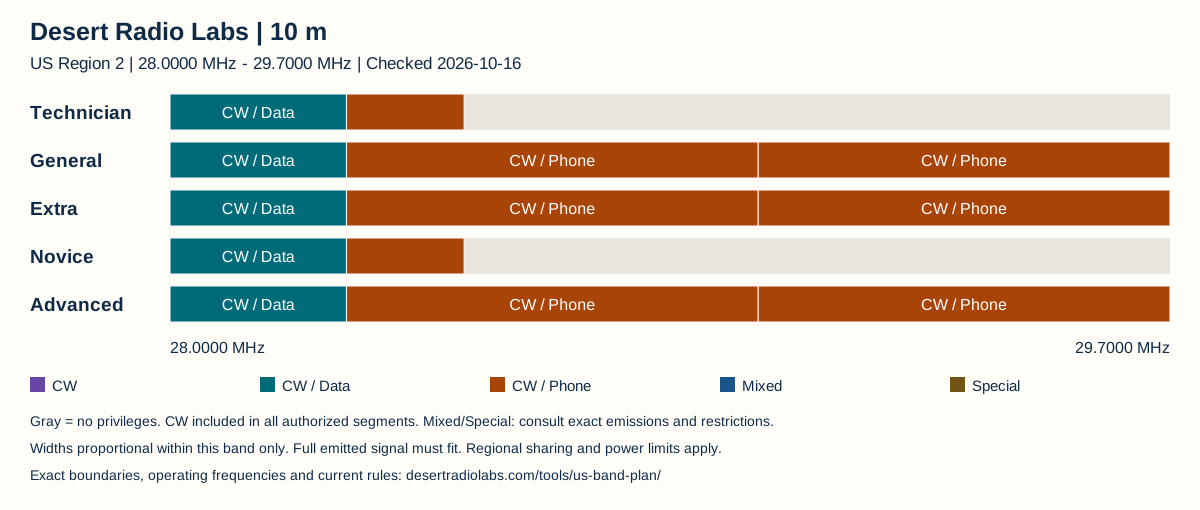
Allowed: CW, RTTY, Data.
Power: 200 W PEP maximum.
Limits apply to the complete emitted signal. Special band and geographic restrictions below also apply.
Technician · 28.3000 MHz – 28.5000 MHzAllowed: CW, SSB phone.
Power: 200 W PEP maximum.
Phone restricted to J3E/R3E (SSB); no FM or image for Novice/Technician.
Limits apply to the complete emitted signal. Special band and geographic restrictions below also apply.
General · 28.0000 MHz – 28.3000 MHzAllowed: CW, RTTY, Data.
Power: 1500 W PEP maximum; use the minimum needed.
Limits apply to the complete emitted signal. Special band and geographic restrictions below also apply.
General · 28.3000 MHz – 29.0000 MHzAllowed: CW, Phone, Image.
Power: 1500 W PEP maximum; use the minimum needed.
Below 29 MHz, angle-modulation index restrictions apply.
Limits apply to the complete emitted signal. Special band and geographic restrictions below also apply.
General · 29.0000 MHz – 29.7000 MHzAllowed: CW, Phone, Image.
Power: 1500 W PEP maximum; use the minimum needed.
Limits apply to the complete emitted signal. Special band and geographic restrictions below also apply.
Extra · 28.0000 MHz – 28.3000 MHzAllowed: CW, RTTY, Data.
Power: 1500 W PEP maximum; use the minimum needed.
Limits apply to the complete emitted signal. Special band and geographic restrictions below also apply.
Extra · 28.3000 MHz – 29.0000 MHzAllowed: CW, Phone, Image.
Power: 1500 W PEP maximum; use the minimum needed.
Below 29 MHz, angle-modulation index restrictions apply.
Limits apply to the complete emitted signal. Special band and geographic restrictions below also apply.
Extra · 29.0000 MHz – 29.7000 MHzAllowed: CW, Phone, Image.
Power: 1500 W PEP maximum; use the minimum needed.
Limits apply to the complete emitted signal. Special band and geographic restrictions below also apply.
Novice · 28.0000 MHz – 28.3000 MHzAllowed: CW, RTTY, Data.
Power: 200 W PEP maximum.
Limits apply to the complete emitted signal. Special band and geographic restrictions below also apply.
Novice · 28.3000 MHz – 28.5000 MHzAllowed: CW, SSB phone.
Power: 200 W PEP maximum.
Phone restricted to J3E/R3E (SSB); no FM or image for Novice/Technician.
Limits apply to the complete emitted signal. Special band and geographic restrictions below also apply.
Advanced · 28.0000 MHz – 28.3000 MHzAllowed: CW, RTTY, Data.
Power: 1500 W PEP maximum; use the minimum needed.
Limits apply to the complete emitted signal. Special band and geographic restrictions below also apply.
Advanced · 28.3000 MHz – 29.0000 MHzAllowed: CW, Phone, Image.
Power: 1500 W PEP maximum; use the minimum needed.
Below 29 MHz, angle-modulation index restrictions apply.
Limits apply to the complete emitted signal. Special band and geographic restrictions below also apply.
Advanced · 29.0000 MHz – 29.7000 MHzAllowed: CW, Phone, Image.
Power: 1500 W PEP maximum; use the minimum needed.
Limits apply to the complete emitted signal. Special band and geographic restrictions below also apply.
2 m144.0000 MHz – 148.0000 MHzVHF / UHF
Each row spans this band only; widths are proportional to frequency. N = Novice · T = Technician · G = General · A = Advanced · E = Extra.
See its frequency limits, license class, emissions and power limit. Exact privileges are also listed below.
- 144.000-144.100 MHz is CW only, apart from brief test emissions allowed by 97.305(b). Repeater pairings vary locally.
Exact FCC privilege ranges and restrictions
| License | Frequency limits | Permitted emissions | Power and conditions |
|---|---|---|---|
| Technician, General, Advanced, Extra | 144.0000 MHz – 144.1000 MHz | CW | 1500 W PEP maximum; use the minimum needed. |
| Technician, General, Advanced, Extra | 144.1000 MHz – 148.0000 MHz | CW, MCW, Phone, Image, RTTY, Data, Test | 1500 W PEP maximum; use the minimum needed. |
Operating references Customary / voluntary
USB dial frequencies are suppressed-carrier settings, not transmitted RF centers. Add the audio offset to find the RF signal. Keep the entire signal inside your privileges; listen before transmitting.
| Mode / activity | Frequency | License access | Meaning / source |
|---|---|---|---|
| JT65 | 144.1200 MHz | Technician, General, Extra, Advanced | USB dial. Customary software default; listen before transmitting. Source |
| MSK144 | 144.1500 MHz | Technician, General, Extra, Advanced | USB dial. Customary software default; listen before transmitting. Source |
| JTTYProvisional | 144.1600 MHz | Technician, General, Extra, Advanced | USB dial. Provisional WSJT-X development default; confirm current software and activity. Source |
| FT4 | 144.1700 MHz | Technician, General, Extra, Advanced | USB dial. Customary software default; listen before transmitting. Source |
| FT8 | 144.1740 MHz | Technician, General, Extra, Advanced | USB dial. Customary software default; listen before transmitting. Source |
| Q65 | 144.1800 MHz | Technician, General, Extra, Advanced | USB dial. Customary software default; listen before transmitting. Source |
| SSB calling | 144.2000 MHz | Technician, General, Extra, Advanced | Carrier / calling. Customary operating reference; listen first and follow local coordination. Source |
| APRS | 144.3900 MHz | Technician, General, Extra, Advanced | FM dial. Common North American terrestrial APRS channel; regional exceptions apply. Source |
| FST4W | 144.4890 MHz | Technician, General, Extra, Advanced | USB dial. Customary software default; listen before transmitting. Source |
| WSPR | 144.4890 MHz | Technician, General, Extra, Advanced | USB dial. Customary software default; listen before transmitting. Source |
| FM calling | 146.5200 MHz | Technician, General, Extra, Advanced | Carrier / calling. Customary operating reference; listen first and follow local coordination. Source |
No operating references match these filters on this band.
Link to this band · Download 2 m vector chart · FCC privileges · Emissions · Power
Technician · 144.0000 MHz – 144.1000 MHz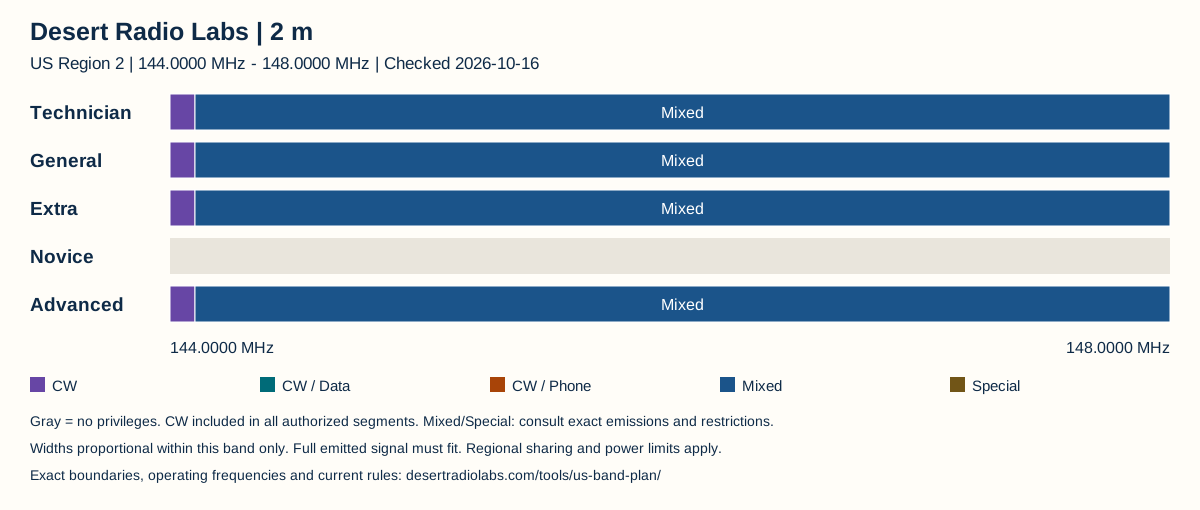
Allowed: CW.
Power: 1500 W PEP maximum; use the minimum needed.
Limits apply to the complete emitted signal. Special band and geographic restrictions below also apply.
Technician · 144.1000 MHz – 148.0000 MHzAllowed: CW, MCW, Phone, Image, RTTY, Data, Test.
Power: 1500 W PEP maximum; use the minimum needed.
Limits apply to the complete emitted signal. Special band and geographic restrictions below also apply.
General · 144.0000 MHz – 144.1000 MHzAllowed: CW.
Power: 1500 W PEP maximum; use the minimum needed.
Limits apply to the complete emitted signal. Special band and geographic restrictions below also apply.
General · 144.1000 MHz – 148.0000 MHzAllowed: CW, MCW, Phone, Image, RTTY, Data, Test.
Power: 1500 W PEP maximum; use the minimum needed.
Limits apply to the complete emitted signal. Special band and geographic restrictions below also apply.
Extra · 144.0000 MHz – 144.1000 MHzAllowed: CW.
Power: 1500 W PEP maximum; use the minimum needed.
Limits apply to the complete emitted signal. Special band and geographic restrictions below also apply.
Extra · 144.1000 MHz – 148.0000 MHzAllowed: CW, MCW, Phone, Image, RTTY, Data, Test.
Power: 1500 W PEP maximum; use the minimum needed.
Limits apply to the complete emitted signal. Special band and geographic restrictions below also apply.
Advanced · 144.0000 MHz – 144.1000 MHzAllowed: CW.
Power: 1500 W PEP maximum; use the minimum needed.
Limits apply to the complete emitted signal. Special band and geographic restrictions below also apply.
Advanced · 144.1000 MHz – 148.0000 MHzAllowed: CW, MCW, Phone, Image, RTTY, Data, Test.
Power: 1500 W PEP maximum; use the minimum needed.
Limits apply to the complete emitted signal. Special band and geographic restrictions below also apply.
No bands match. Clear the search or reset the filters.
How it all began
A century of amateur radio
Early amateurs experimented with homemade transmitters and Morse code. Their work helped establish long-distance shortwave communication and organized message networks. Later operators built amateur satellites and developed computer-assisted modes. Follow that history to see where familiar operating habits came from and how the equipment changed.
Start with a real activity
Choose a guided learning path
Pick an activity that fits the equipment and help you have. The instructions explain what to prepare and how to check your progress. If something is unfamiliar, a club mentor can work through it with you.
Make your first amateur radio contact
Learn the settings a local repeater needs, listen to how people use it, and make a short voice exchange when your license permits. The steps include a way to check your setup and a few things to record after the contact.
Complete and record one legal, courteous voice contact.
Follow this path: Make your first amateur radio contactReturn to the air with confidence
If your station has been unused for a while, start with the license record and a careful look at the equipment. This path takes you through a receiving check and helps you choose a manageable return to operating.
Complete a station safety review and identify a safe next on-air activity.
Follow this path: Return to the air with confidenceExplore HF before transmitting
Listen to a remote receiver through your browser and compare signals on two HF bands. You can try this without owning a station. The aim is to hear how tuning and operating mode affect reception, then record what changed.
Identify two HF signals and describe how their reception differs.
Follow this path: Explore HF before transmittingMeasure an antenna before changing it
Use an antenna analyzer to save a starting measurement, make one small change and compare the result. This activity needs safe access to the antenna and familiarity with the instrument; ask an experienced operator to help if those are new to you.
Capture and compare before-and-after antenna measurements.
Follow this path: Measure an antenna before changing itExplore the resource library
Get on the air
Start with listening and learn how operators take turns. These resources help you understand licensing, find a local club and make a first contact when you are authorized to transmit.
Browse these resourcesExplore HF
HF is the shortwave part of radio, where conditions can carry signals well beyond the horizon. Listen with a web receiver, learn why the bands change through the day, and explore reports from distant stations.
Browse these resourcesTry digital modes
A computer can turn radio signals into short reports, typed conversations or messages. Compare what the different modes are used for before choosing software, then begin by receiving and learning the controls.
Browse these resourcesLearn Morse code
Morse code sends characters as patterns of short and long sounds. You can start listening and practicing in your browser without a radio. These resources help you recognize the sounds and build a practice habit.
Browse these resourcesWork satellites
Amateur satellites can relay signals between stations on Earth. Learn how to predict when one is overhead and try hearing its downlink first. Current status and operating frequencies matter as much as the tracking prediction.
Browse these resourcesExplore SDR
Software-defined radio puts many receiver controls on a computer screen. Try a public web receiver before buying hardware, or find software for a receiver you already have. The spectrum and waterfall displays help you notice signals around the frequency you are listening to.
Browse these resourcesBuild antennas
The antenna and its feed line affect what a station can hear and transmit. Start with safe, accessible equipment and learn what an SWR measurement can tell you before changing lengths or moving connections.
Browse these resourcesGo portable
Taking a station away from home means planning power, an antenna and a safe place to set up. Learn about park and summit activities, or start by listening for a portable operator from your home station.
Browse these resourcesBuild something
Learn what the components do before assembling a circuit. Use a simulator to try an idea, work through a basic electrical lesson, or draw a small design. Start hardware experiments with low voltage and suitable current limits.
Browse these resourcesAutomate your station
Software can record contacts, change radio settings or help you build a signal-processing experiment. Choose one job to understand first. Keep a backup of working settings before connecting new programs to a radio.
Browse these resourcesHardware, Software and Websites
Browse equipment write-ups, programs and online references by what you need. Start with the job you want to do, then check compatibility and setup requirements before adding anything to your station.
Hardware
Radios, antennas, test instruments and bench equipment. Read the practical write-ups and learn what to measure before choosing or changing gear.
Explore hardwareSoftware
Programs for logging, digital modes, receiver control and electronics work. Find out what each program does before setting up connections to your equipment.
Explore softwareWebsites
Online learning, operating references, maps and station directories. Find a useful starting point without installing another program.
Explore websitesWelcome back
Returning to ham radio?
If you have been away from radio, begin with something you already enjoy. You could listen to a remote SDR, hear how FT8 sounds, or look for operators working from parks. Check your license and the condition of stored equipment before returning to transmitting.
Explore digital modes · Explore SDR · Try portable operating
Explore by interest
Browse a subject that interests you and read what each resource can help you do. The quick tips are small activities you can try with suitable equipment and, where needed, an experienced operator.
Get on the air
Start with listening and learn how operators take turns. These resources help you understand licensing, find a local club and make a first contact when you are authorized to transmit.
- ARRL Affiliated Club Search
Find a local amateur radio club and ask about mentorship and activity nights.
Club listings include locations, interests and services such as classes or mentoring. Look for a nearby group whose activities sound useful, then check its own website for current meeting details. Asking whether you can visit is a reasonable first step, even before you own a radio.
Open ARRL Affiliated Club Search - ARRL Band Plans
Review common US amateur band plans before operating; check legal privileges separately.
Band plans suggest where different activities share the amateur bands, including voice, digital signals and repeaters. Use them alongside the FCC rules for your license class. A suggested operating frequency does not give you permission to transmit outside your privileges.
Open ARRL Band Plans - ARRL Emergency Communications Training
Courses and training for responsible public-service communications.
Emergency communications involves training and working within an organized response. ARRL links introductory courses and local training for radio volunteers. Start with the basic material and ask a local group about its requirements before taking on a public-service role.
Open ARRL Emergency Communications Training - ARRL Getting Licensed
Understand Technician, General, and Extra licensing paths in the United States.
ARRL explains the Technician, General and Amateur Extra license classes and the exams for each. Technician is the usual starting point in the United States. Read about the operating privileges before choosing study material so you understand what the license will let you try.
Open ARRL Getting Licensed - ARRL Learning Center
Classes, webinars, and recorded lessons; some material requires ARRL membership.
The Learning Center has courses, recorded presentations and study material. Browse by the subject you want help with, such as antennas or operating. Members and non-members can use the center, but access varies by membership status and the particular material.
Open ARRL Learning Center - ARRL New Ham Resources
Starting points for licensing, first contacts, mentoring, and operating basics.
This collection brings together exam preparation, first-contact help and explanations of common operating practices. It is a useful place to follow up on a term or procedure you heard at a club meeting. Choose one question, then follow the related reference for the fuller explanation.
Open ARRL New Ham Resources - ARRL Newly Licensed Guide
Practical answers about first equipment, first contacts, antennas, logging, and operating procedures.
This guide answers questions that come up after passing the exam, including equipment, antennas and making a contact. Its operating references also cover the phonetic alphabet and signal reports. Pick the question that matches your next task instead of trying to absorb the whole guide at once.
Open ARRL Newly Licensed Guide - Check your license before transmitting
Verify that your callsign and license privileges are active before you transmit.
Look up your callsign in the FCC Universal Licensing System and read the status and license class. Then check the frequency and emission privileges for that class. Passing an exam is a step toward the grant; confirm that the authorization is active before you press the transmit button.
- EchoLink
Connect amateur radio operators using Internet-linked stations after callsign validation.
EchoLink carries amateur voice conversations over the internet and can connect to participating radio stations. It requires callsign validation. Read the validation and setup instructions first so you understand which parts of a connection use the internet and which may transmit over a radio.
Open EchoLink - FCC Universal Licensing System
Look up US amateur radio license records and application status.
The FCC's licensing database lets you search for licenses by callsign or name and inspect their records. Use your own record to check the license status and class before transmitting. A practice-test score or an exam pass alone is not the same as an issued license grant.
Open FCC Universal Licensing System - FEMA Independent Study
Explore incident command and emergency-management learning before volunteering.
These self-paced courses explain how emergency response is organized, including the Incident Command System. They can help you understand the roles and language used by response agencies. If you plan to volunteer, ask the organization which courses it expects you to complete.
Open FEMA Independent Study - HamStudy
Study the current US question pools and find exam sessions.
HamStudy has question-pool study tools, practice exams and exam-session listings. Choose the license class you are studying for and work on the questions you miss. Use the explanations to learn the ideas as well as the answers, then check the details for the exam session you choose.
Open HamStudy - Listen before transmitting
Monitor a frequency to learn local operating patterns and avoid interrupting an existing contact.
Spend a few minutes listening to learn whether a contact is in progress and how operators take turns. A quiet receiver does not always mean the frequency is unused; another station may be too weak for you to hear. Use the customary procedure for that band and mode, along with authorized power and bandwidth.
- Make your first repeater contact
Program a local repeater, listen first, then give your callsign and say you are new to the hobby.
Find a current local repeater listing and confirm the frequency, transmit offset and access tone with a club member if needed. Listen to a conversation before calling. When the channel is clear, give your callsign and ask for a radio check, then leave time for someone to answer. Follow identification requirements.
- RepeaterBook
Look up nearby repeaters and explore frequencies and tones; verify local listings.
RepeaterBook lets you search by location, callsign or frequency and find repeater information to program into a radio. Check the listed band, offset and access tone against current local information. Before making a call, listen and confirm that the repeater is available for the kind of operation you intend.
Open RepeaterBook
Explore HF
HF is the shortwave part of radio, where conditions can carry signals well beyond the horizon. Listen with a web receiver, learn why the bands change through the day, and explore reports from distant stations.
- Club Log
Analyze HF logs and DXCC progress with online statistics.
Club Log uses uploaded contact logs to show operating statistics and progress toward DXCC. That award counts confirmed contacts with designated geographic entities, which do not always match political countries. Browse the charts first; uploading a log becomes more useful once you have contacts to compare.
Open Club Log - Keep a simple propagation journal
Compare time, frequency, antenna, and reception reports over several days.
Write down the time in UTC, the band, operating mode and antenna, along with what you heard or where your signal was reported. Repeat the observation over several days. Compare similar setups and times before deciding that a change in antenna performance caused a difference in reception.
- Logbook of The World
ARRL's electronic QSO confirmation service for awards and operating records.
LoTW compares electronically signed contact records submitted by both operators and records matches as confirmations. Those confirmations can support award applications. Read the account and certificate instructions before uploading your log; recording a contact locally does not automatically confirm it with the other station.
Open Logbook of The World - PSK Reporter propagation map
Use digital-mode reception reports to explore active propagation paths.
Use the reception map to compare which paths appear active on a band and at a particular time. This can help you choose where to listen or call. Receiver coverage and reporting vary, so a blank part of the map does not prove that a path is closed.
Open PSK Reporter propagation map - QRZ
Callsign lookup, logbook, and ham radio community resources.
QRZ combines callsign lookup with operator pages, logging and community material. If you heard a callsign clearly, looking it up can add context to a contact. Use the FCC database when you need the official US license record; community pages are maintained for a different purpose.
Open QRZ - Reverse Beacon Network
Check automated reception reports for CW and other supported signals.
Volunteer receiving stations automatically report signals they decode, including CW calls. Search for your callsign after a permitted test to see which receivers heard it. Compare reports from the same receiver and similar conditions; the network is not a calibrated test range for your antenna.
Open Reverse Beacon Network - VOACAP Online
Explore predicted HF propagation paths and compare bands and times.
VOACAP models the likelihood of HF communication between locations under chosen conditions. Use its amateur-radio prediction tools to compare bands and times for a path. The results are forecasts, so compare them with actual reception rather than expecting a contact at a particular hour.
Open VOACAP Online - WSPRnet
Explore weak-signal propagation reports gathered from WSPR spots.
WSPR receivers report short beacon transmissions to this network's database. Inspect the reported callsigns, bands and reception times to see which paths were heard. The reports are useful observations of propagation, but differences in receiving antennas and local noise can affect comparisons.
Open WSPRnet
Try digital modes
A computer can turn radio signals into short reports, typed conversations or messages. Compare what the different modes are used for before choosing software, then begin by receiving and learning the controls.
- aprs.fi
See APRS position reports and learn what amateur packet tracking can do.
APRS carries short reports such as position, weather and messages. The map lets you inspect stations and their reported activity without building a tracking station first. Look around your area and select a station to see what it has actually reported.
Open aprs.fi - Check where your FT8 signal is heard
After transmitting FT8, use PSK Reporter to see which stations have received you.
After a legal FT8 transmission, select your callsign and a recent time window on PSK Reporter. The reports show which participating receivers decoded you. Compare several observations under similar conditions; a blank map can reflect missing reports, and the displayed signal values are not a calibrated antenna-efficiency measurement.
- Dire Wolf
Software TNC and packet radio tools for APRS and related applications.
Dire Wolf uses a computer's audio system to encode and decode packet radio, including APRS. It can perform jobs that previously needed a separate hardware TNC. Read the setup instructions for your radio and audio interface, then begin with receiving packets before enabling transmission.
Open Dire Wolf - FLDigi
Explore sound-card digital modes such as Olivia and PSK using a computer.
Fldigi works with a computer's audio system to send and receive several text-based radio modes, including PSK and Olivia. Start with the program's documentation and receiving setup. Transmitting also needs a suitable radio interface, careful audio levels and privileges for the chosen band and emission.
Open FLDigi - JS8Call
Try keyboard-to-keyboard messaging based on weak-signal digital techniques.
JS8Call supports typed conversations and short messages over radio using weak-signal techniques. Unlike a short fixed contact exchange, you can compose your own text. Read the project's current setup guide and begin by receiving so you can see how operators use the channel.
Open JS8Call - PSK Reporter
See where stations are reporting digital-mode signals on a map.
Receiving stations send reports to PSK Reporter when their software decodes a supported signal. Choose a callsign, mode and time window to see the reports on its map. A report shows reception at that station; it does not mean a two-way conversation took place.
Open PSK Reporter - Set digital-mode audio levels carefully
Use clean audio and avoid transmitter overdrive when testing FT8 or other sound-card modes.
A computer can feed too much audio into a transmitter and distort the signal. Follow the radio's ALC guidance and the software setup instructions, beginning with low output power. Check the band and your license privileges before any transmission; hearing a clean signal on receive does not test your transmit audio.
- Winlink
Learn how amateur radio email messaging works over radio and network gateways.
Winlink exchanges email-style messages through client software and a network that includes radio gateways. Its site explains account requirements and supported clients. Start with the help for Winlink Express and understand the connection method before adding radio equipment; amateur transmissions are subject to operating rules.
Open Winlink - WSJT-X
Software for FT8, FT4, WSPR, and other weak-signal modes.
WSJT-X uses a computer and a radio audio connection to decode weak-signal modes such as FT8, FT4 and WSPR. The messages and purpose differ by mode. Begin with the user guide and receiving setup; successful decoding does not by itself mean your transmitter is configured correctly.
Open WSJT-X
Learn Morse code
Morse code sends characters as patterns of short and long sounds. You can start listening and practicing in your browser without a radio. These resources help you recognize the sounds and build a practice habit.
- Learn CW Online
Browser-based Morse code lessons, practice exercises, and progress tracking.
Learn CW Online has browser exercises for Morse characters, words and callsigns, with practice records you can return to. Start with its lessons and a small set of characters. Aim to recognize the sound of each character before increasing the amount of material.
Open Learn CW Online - Morse Code Ninja
Audio practice material for recognizing Morse as sound rather than counting dits and dahs.
Morse Code Ninja has listening practice at different speeds and with different kinds of material. Choose a short exercise you can follow and repeat it over several sessions. The aim is to connect a sound pattern with a character or word, without counting every dit and dah.
Open Morse Code Ninja - Practice Morse code for ten minutes
Build an achievable daily CW listening habit.
Choose a few Morse characters and practice recognizing their sound in short sessions. Use a character speed at which the complete sound has a recognizable rhythm, with enough spacing to think between characters. Counting every dit and dah can become a habit that is hard to move past as speed increases.
Work satellites
Amateur satellites can relay signals between stations on Earth. Learn how to predict when one is overhead and try hearing its downlink first. Current status and operating frequencies matter as much as the tracking prediction.
- AMSAT Getting Started
Beginner information and operating guides for amateur satellites.
AMSAT explains how amateur satellites work and what you need to hear or contact them. Start with the beginner material and choose a listening session before planning a transmission. Satellite passes are brief, so knowing the frequencies and tracking method ahead of time helps.
Open AMSAT Getting Started - AMSAT Satellite Status
Crowdsourced satellite activity reports for planning operations.
A satellite can be in range without its amateur radio equipment being available. This page collects reception reports from other operators. Check the recent reports and the satellite's operating information before a pass; an empty report history does not prove that the satellite has failed.
Open AMSAT Satellite Status - Heavens-Above
Predict satellite passes and explore orbital tracking.
Satellite predictions depend on where you are observing. Set your location first, then look at the amateur radio satellite passes. Use the predicted time and direction to plan a listening attempt, and check AMSAT separately for current radio activity and frequencies.
Open Heavens-Above - Listen to a satellite pass
Predict an amateur satellite pass and try to hear the downlink before transmitting.
Choose a predicted pass for your location and check the satellite's current downlink and status. Start by trying to hear it. Note when the signal appears and fades; if you later transmit with suitable privileges, follow the satellite's operating guidance and leave room for other users.
Explore SDR
Software-defined radio puts many receiver controls on a computer screen. Try a public web receiver before buying hardware, or find software for a receiver you already have. The spectrum and waterfall displays help you notice signals around the frequency you are listening to.
- Gqrx SDR
Receive and visualize signals with supported SDR hardware.
Gqrx turns supported SDR hardware into a receiver with tuning controls and a spectrum display. It is useful for exploring signals with your own antenna. Check the supported-device and installation information first, since the receiver hardware and operating system affect the setup.
Open Gqrx SDR - KiwiSDR public receivers
Listen to remote HF software-defined receivers from a browser.
This map links public KiwiSDR receivers in different locations. Choose one and listen through its browser interface, using the antenna at that site. Comparing receivers can show how location and local noise affect what you hear; each receiver's availability and coverage can differ.
Open KiwiSDR public receivers - SDR++
Cross-platform SDR receiving and spectrum visualization.
SDR++ provides tuning, spectrum and waterfall displays for supported SDR devices on several operating systems. It is a way to explore a wide view of the signals around a frequency. Check the receiver module and driver instructions for your hardware before installing or changing settings.
Open SDR++ - Try receiving with a web SDR
Explore HF or local signals from an online receiver without owning extra hardware.
Open a public receiver that covers an amateur band and follow its usage instructions. Tune around and try the appropriate voice or CW setting until a signal makes sense. Listening needs no amateur transmitting license where permitted; you are hearing reception at the remote antenna, not at your own location.
- WebSDR
Listen to radio receivers around the world from your browser.
A WebSDR is an internet-connected receiver that multiple people can tune independently through their browsers. Choose a receiver from the directory and try listening on a band it covers. You are hearing conditions at the receiver's antenna, which may be very different from conditions at your home.
Open WebSDR
Build antennas
The antenna and its feed line affect what a station can hear and transmit. Start with safe, accessible equipment and learn what an SWR measurement can tell you before changing lengths or moving connections.
- ARRL RF Exposure Information
Learn why RF-exposure assessment and station safety matter.
Transmitting stations need to consider how much radio-frequency energy people can be exposed to. ARRL explains exposure assessments and links supporting material. Read this while planning antenna placement, especially where family members or visitors could be close to the antenna during transmission.
Open ARRL RF Exposure Information - Measure before changing an antenna
Record an antenna's measurements before and after one modification.
Save the starting frequency, SWR readings and the exact cable setup before making an adjustment. Use a calibrated analyzer suited to the band, with the transmitter disconnected. Repeat the same measurement after one change so you have something meaningful to compare; SWR alone does not tell you antenna efficiency.
- NanoVNA-Saver
Graph and save measurements from compatible NanoVNA instruments.
NanoVNA-Saver brings measurements from a compatible NanoVNA onto a computer, where you can inspect plots and save results. Start with a calibrated measurement and note which cable and adapters are included. A saved SWR trace is useful for comparison, but it does not measure antenna radiation efficiency.
Open NanoVNA-Saver
Go portable
Taking a station away from home means planning power, an antenna and a safe place to set up. Learn about park and summit activities, or start by listening for a portable operator from your home station.
- ARRL Field Day
Learn about club field stations and annual operating activities.
During this annual event, groups set up stations and make contacts from temporary locations. The site has event information, rules and a station locator. Find a nearby group and ask about visiting; seeing a working field station can help you understand the equipment before choosing your own.
Open ARRL Field Day - Make a portable station checklist
Pack an antenna, feed line, power, radio, weather protection, and a simple log.
Lay out the complete station before packing: radio, power, antenna, feed line and the small connectors each one needs. Add a way to log contacts and protect equipment from weather. Check site rules, battery polarity, RF exposure, trip hazards and clearance from utility lines before setting up.
- OpenStreetMap
Plan portable operating locations and examine accessible routes.
OpenStreetMap is a community-built map that can help you examine roads, paths and nearby features when planning an outing. Check the route against local information and site rules. A mapped path does not by itself establish public access, current conditions or permission to put up an antenna.
Open OpenStreetMap - Parks on the Air
Learn how to activate parks and contact portable operators.
Parks on the Air is a program for operating from listed parks and contacting those operators. The site links rules and guides for activators and hunters. Start by reading those roles, then try listening for a park station; park access and antenna rules still need a separate check.
Open Parks on the Air - POTA Spotting
Browse current park activation spots and learn how hunters find operators.
The POTA app shows park activity and the frequencies operators report using. You can listen for an activator from home before planning your own outing. Check the spot's time and mode, because operators may move frequency or finish before you arrive on the band.
Open POTA Spotting - SOTAwatch
Find alerts and spots for Summits on the Air activations.
An alert announces a planned summit outing; a spot reports where an operator has been heard or is operating. Use those listings to choose a frequency to listen to. Mountain plans and reception change, so treat a listing as a lead rather than a guaranteed contact.
Open SOTAwatch - Summits on the Air
Explore portable amateur radio activity on qualifying summits.
Summits on the Air is an awards program built around contacts with operators on qualifying summits. Read the general rules and the rules for your local association before planning an activation. You can also participate as a chaser from home, without making the climb yourself.
Open Summits on the Air
Build something
Learn what the components do before assembling a circuit. Use a simulator to try an idea, work through a basic electrical lesson, or draw a small design. Start hardware experiments with low voltage and suitable current limits.
- All About Circuits Textbook
Free lessons on electricity, components, and circuit fundamentals.
The textbook starts with voltage, current and resistance, then moves into components and more involved circuits. If the electrical side of radio is new to you, begin with the direct-current lessons and work through the examples before moving to radio-frequency topics.
Open All About Circuits Textbook - Falstad Circuit Simulator
Experiment visually with simulated circuits before using hardware.
The simulator shows a circuit diagram with animated current and changing voltages. Open a sample circuit and change a component value to see the result. It is a useful way to explore an idea before wiring it, although a simulation cannot check every limit of real components.
Open Falstad Circuit Simulator - KiCad
Design electronic schematics and PCBs with open-source tools.
KiCad lets you draw a schematic, lay out a printed circuit board and inspect it in 3D. Its getting-started documentation walks through the design process. Begin with a small circuit you understand; design-rule checks help find mistakes but do not establish that a circuit is electrically safe.
Open KiCad - Verify Ohm's law on a low-voltage circuit
Measure voltage and current across a known resistor and compare against a calculated expectation.
Begin with a low-voltage, current-limited supply and a resistor whose power rating suits the test. Measure voltage across the resistor. Current measurement uses a different meter connection, so check the manual and lead sockets first; putting a meter set for current directly across a supply can cause a short circuit.
Automate your station
Software can record contacts, change radio settings or help you build a signal-processing experiment. Choose one job to understand first. Keep a backup of working settings before connecting new programs to a radio.
- Back up radio configuration files
Save known-good settings and memories before programming or upgrading your station.
Radio memories can contain frequencies, repeater offsets and access tones that took time to get right. Export a known-good configuration before programming or updating firmware, and keep the radio model and date with the file. Where practical, check a backup on a test copy before relying on it.
- GNU Radio
Experiment with programmable signal processing and software-defined radio.
GNU Radio connects signal-processing blocks into a flowgraph, a diagram that describes how samples move through a radio experiment. The tutorials are a better starting point than a complex finished receiver. Try a simple generated signal first; many basic experiments do not need transmitting hardware.
Open GNU Radio - Ham Radio Deluxe
A Windows suite combining a logbook, radio control and other station tools.
Ham Radio Deluxe brings logging, supported radio control, digital modes, satellite tracking and antenna rotator control into one suite. You can begin with the logbook and add features as you need them. Check supported radios and current licensing terms, and save your working station settings before configuring control connections.
Open Ham Radio Deluxe - Ham2K
Logging apps for portable operating and a developing cross-platform station logger.
Ham2K Portable Logger, often called PoLo, focuses on recording contacts during portable activities such as POTA and SOTA. Ham2K also offers a newer Power Logger in beta. Follow the current project links for your device, try a practice operation and learn to export your contacts before taking it into the field.
Open Ham2K - Hamlib
Open-source libraries for controlling many amateur radio transceivers.
Hamlib provides a common way for programs to control many radios and antenna rotators. You will often encounter it inside logging or digital-mode software. Check whether your radio is supported, then follow that application's connection instructions rather than assuming every radio uses the same settings.
Open Hamlib - Log4OM
Free Windows software for keeping a station log and connecting logging tools.
Log4OM records contacts and helps organize confirmations and operating awards. Start with a small practice log and learn how to export a backup before connecting other programs. Radio control and digital-mode integrations need their own setup; check the manual for your equipment.
Open Log4OM - N1MM Logger+
Windows logging software for contesting and station integration.
N1MM Logger+ is designed for radio contests, where operators exchange specific information and record contacts quickly. It supports voice, CW and digital operating. Read the getting-started section and try a practice log before connecting radio-control features or using it during an event.
Open N1MM Logger+ - N3FJP Amateur Radio Software
General-purpose and contest logging programs for Windows.
Amateur Contact Log is the general station log in the N3FJP family. Separate programs support particular contests and their required exchanges. Start by deciding whether you need an everyday log or an event log, then practice entering contacts and exporting them before operating.
Open N3FJP Amateur Radio Software - World Radio League
An online logbook with companion apps, contact maps and operating statistics.
World Radio League lets you keep contacts in an account and view them across its web and companion apps. Begin by entering a few contacts or importing a copy of an existing log. Check current plan limits and integration documentation before relying on it for a particular radio or digital-mode workflow.
Open World Radio League
For clubs and mentors
Bring a new ham along
The club guide outlines a 75-minute session that a mentor can adapt to the people and equipment in the room. It includes listening and measurement activities as well as operating practice. The printable First Contact card gives a learner a place to record station settings and keep sample on-air wording nearby.
Open the Club Learning Guide → · Print the First Contact card →
Quick shelves
54 resources and 13 quick tips to explore, with more added as they are discovered. Prefer a longer write-up? Visit the Notes or Workbench.